
Web Components Language Server - Zed
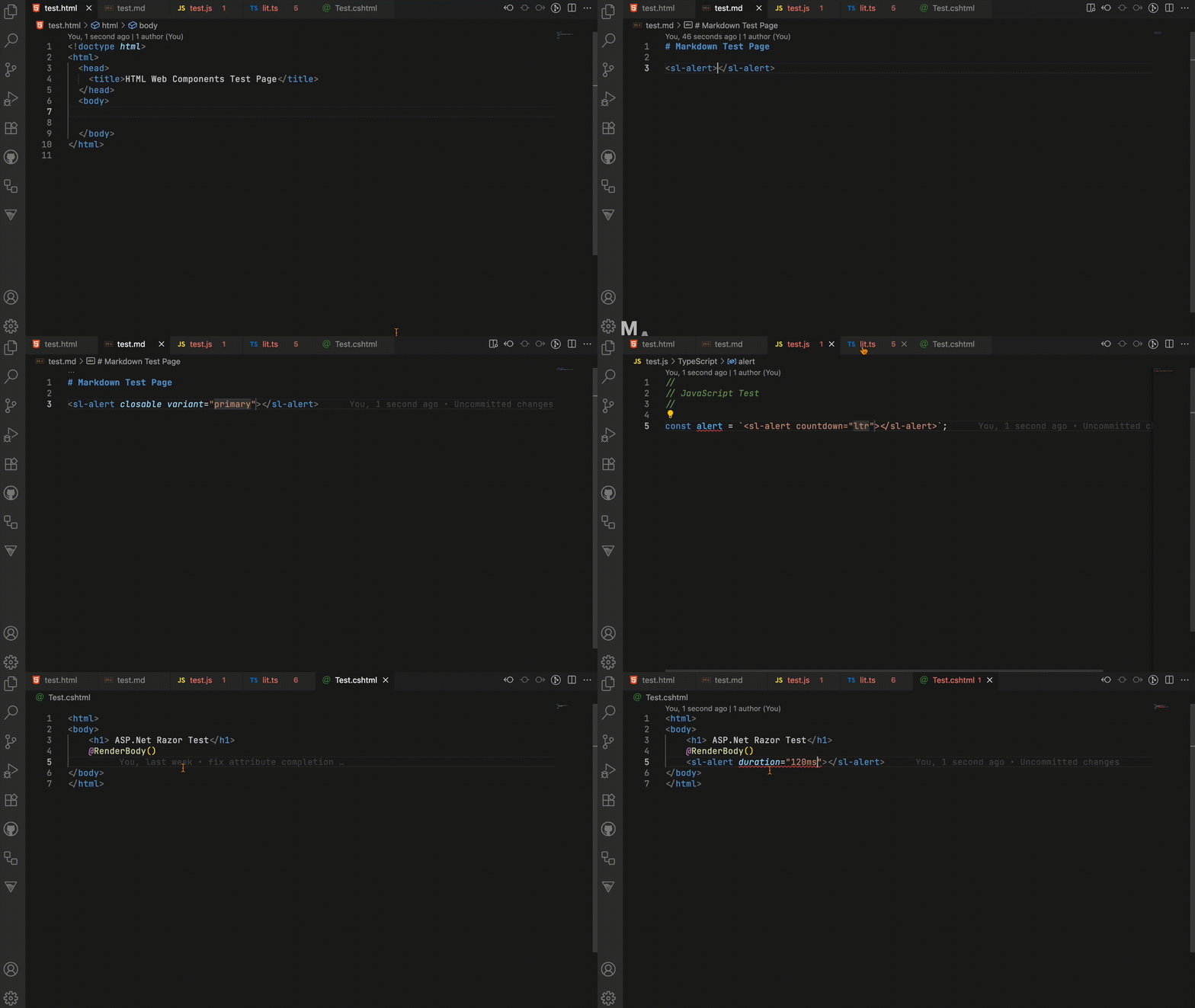
This extension brings the @wc-toolkit language server into Zed so you get framework-aware completions, diagnostics, and hover documentation while editing HTML, TypeScript, Markdown, Svelte, Astro, Vue SFCs, and other templates that include custom elements.
Installation
From Zed’s extension browser
Open the Extensions view in Zed and search for “Web Components Language Server”. Install the extension from there.
or
- Open the command palette (
Cmd/Ctrl+Shift+P). - Run “Zed: Extensions”.
- Search for “Web Components Language Server”.
- Select the entry and press Install.
Using the extension
Once the extension is installed:
- Open a workspace that contains your Web Components project (if you are using an npm package with web components that has a
custom-elements.jsonfile or if there is one locally, these will be automatically detected). - Diagnostics and completion quality can be customized when you provide a workspace-level
wc.config.js, described below.
Usage
Autocomplete in Action
<!-- Get intelligent suggestions for custom elements --><my-custom-element my-attribute="value"></my-custom-element>Disabling diagnostics with comments
You can locally disable wctools diagnostics using HTML comment directives. These mirror ESLint-style disables and support stacking multiple rule names (comma or space separated).
- Disable rules for the entire file:
<!-- wctools-ignore --><!-- wctools-ignore unknownAttribute deprecatedAttribute -->- Disable diagnostics for the following line:
<!-- wctools-ignore-next-line deprecatedAttribute --><my-element deprecated-attr></my-element>Rules can be listed separated by spaces or commas (whitespace around commas is ignored), e.g.:
<!-- wctools-ignore ruleA ruleB,ruleC -->.
Supported File Types
This plugin currently works with many file types, but additional configurations will be added to customize this experience in the future. If you find that the language server is not activating in a specific file type, please open an issue on the GitHub repository.
Configuration
To configure the Web Components Language serve create a file named wc.config.js at the root of your workspace and export the configuration object.
export default { // your config options here};Available Settings
/** Configuration options for the Web Components Language Server. */interface WCConfig extends LibraryConfig {  /**   * Specifies a list of glob patterns that match files to be included in compilation.   * If no 'files' or 'include' property is present in a tsconfig.json, the compiler defaults to including all files in the containing directory and subdirectories except those specified by 'exclude'.   */  include?: string[];
  /** Specifies a list of files to be excluded from compilation. The 'exclude' property only affects the files included via the 'include'. */  exclude?: string[];
  /** Used to enable debugging output. */  debug?: boolean;
  /** Library specific configuration. */  libraries?: {    /** Configuration for each library by name where the key is package name */    [libraryName: string]: LibraryConfig;  };}
/** Options for configuring the Language Server for a library */export interface LibraryConfig {  /**   * Specify a custom path to the CustomElements Manifest   * The path can be for a local file or a remote URL.   */  manifestSrc?: string;
  /** Optional function to format tag names before processing. */  tagFormatter?: (tagName: string) => string;
  /**   * Alternative property name that types may be mapped to   * @default "parsedType"   */  typeSrc?: string;
  /** Diagnostic severity levels for various validation checks. */  diagnosticSeverity?: {    /**     * Severity for invalid boolean attribute values.     * @default "error"     */    invalidBoolean?: DiagnosticSeverity;    /**     * Severity for invalid number attribute values.     * @default "error"     */    invalidNumber?: DiagnosticSeverity;    /**     * Severity for invalid attribute values.     * @default "error"     */    invalidAttributeValue?: DiagnosticSeverity;    /**     * Severity for usage of deprecated attributes.     * @default "warning"     */    deprecatedAttribute?: DiagnosticSeverity;    /**     * Severity for usage of deprecated elements.     * @default "warning"     */    deprecatedElement?: DiagnosticSeverity;    /**     * Severity for usage of duplicate attributes.     * @default "error"     */    duplicateAttribute?: DiagnosticSeverity;    /**     * Severity for usage of unknown elements.     * @default "warning"     */    unknownElement?: DiagnosticSeverity;    /**     * Severity for usage of unknown attributes.     * @default "info"     */    unknownAttribute?: DiagnosticSeverity;  };}
type DiagnosticSeverity = "error" | "warning" | "info" | "hint" | "off";
Example Configuration
export default {  /** Fetch manifest from a local directory */  manifestSrc: './build/custom-elements.json',
  /**   * Only enable the Language Server feature for the TypeScript   * and HTML files in the `src` directory of the project.   */  include: ['src/**/*.ts', 'src/**/*.html'],
  /**   * Add the custom suffix `_global` for all components.   * Language server options will now work for `my-button_global`.   */  tagFormatter: (tagName) => `${tagName}_global`,
  diagnosticSeverity: {    /**     * Show duplicate attributes only as a warning instead of an error (global default override).     */    duplicateAttribute: 'warning'  },
  /** Library specific configurations (override root settings for that library only). */  libraries: {    "@awesome.me/webawesome": {      /**       * Fetch manifest from a URL.       * (Optional if the NPM package is installed and exposes custom-elements.json)       */      manifestSrc: 'https://cdn.jsdelivr.net/npm/@awesome.me/webawesome@3.0.0-beta.4/dist/custom-elements.json',
      /**       * Replace `wa-` prefix with `awesome-` for all Web Awesome components.       * Language server options will now work for `awesome-button` instead of `wa-button`.       */      tagFormatter: (tagName) => tagName.replace('wa-', 'awesome-'),
      diagnosticSeverity: {        /** Treat duplicate attributes as warnings just for this library (overrides global). */        duplicateAttribute: 'warning'      }    }  }};
Troubleshooting
Common Issues
Extension not working?
- Make sure the Web Components Language Server extension is installed and enabled in Zed
- Open a supported file type (HTML, TS/JS, Markdown, Astro, Svelte, Vue SFC, etc.) so the language server activates
- Reload Zed (or restart the workspace) to reinitialize the extension if it looks idle
IntelliSense not appearing?
- Update to the latest extension version in Zed’s Extensions view
- If your Custom Elements Manifest is not at the root of your project or is remote, add a
wc.config.jsto point the language server to it - Restart the language server from the command palette or restart Zed to pick up configuration changes
- If issues persist, inspect Zed’s logs (command palette > search for “Open Logs”/“Show Logs”) for errors from the Web Components Language Server
Enjoy enhanced Web Components development! 🎉